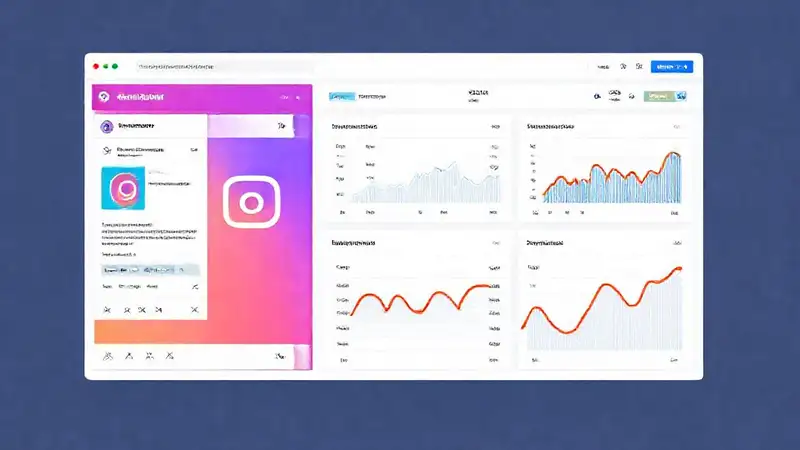
Social media marketing has become absolutely essential for businesses of all sizes. Platforms like Instagram offer incredible reach and targeted advertising opportunities, but simply running ads isn’t enough. To truly understand the effectiveness of your campaigns and justify your investment, you need robust tracking in place. This article will guide you through a powerful method – utilizing Google Tag Manager (GTM) – to accurately monitor conversions generated directly from your Instagram ads. We’ll delve into the technical aspects and provide a clear, actionable plan to get you started. Understanding how to connect Instagram data to your analytics is no longer a luxury; it’s a fundamental requirement for data-driven marketing success.
Getting accurate conversion data is crucial for optimizing your Instagram ad spend and ultimately driving more business. Without proper tracking, you’re essentially flying blind, making decisions based on gut feeling rather than concrete insights. GTM provides a flexible and non-intrusive way to implement tracking codes and custom events, allowing you to see exactly which ads are leading to desired actions, like purchases, sign-ups, or lead generation. This knowledge empowers you to refine your targeting, improve your creative, and maximize your return on ad spend. Let’s break down the process of setting this up.
Setting Up Google Tag Manager
Before you can track conversions, you need to ensure Google Tag Manager is correctly installed on your website. If you haven’t already, the first step is to create a GTM account and container. Once created, you’ll receive a snippet of code – a container tag – that you need to add to every page of your website. This tag acts as the central hub for all your tracking codes. Don’t worry, it’s a relatively simple process, and there are plenty of tutorials available online to guide you through it. After installation, familiarize yourself with the GTM interface. It’s a visual editor where you’ll create and manage your tags, triggers, and variables.
Next, you’ll need to connect your Instagram account to GTM. This is done through the Facebook Pixel, which automatically tracks user actions on your website after they’ve interacted with your Instagram ads. The Pixel sends data back to Facebook, and GTM then receives that data and uses it to trigger custom events. It’s a two-way connection that provides a comprehensive view of the customer journey. Ensure you’ve properly configured the Facebook Pixel on your website – verifying accurate tracking is paramount for the entire process to work effectively.
Creating a Conversion Event in GTM
Now that you’ve established the connection, it’s time to create a conversion event specifically for your Instagram ads. This event will represent the desired action you want to track, such as a purchase or a form submission. In the GTM interface, navigate to ‘Tags’ and click ‘New’. Choose the ‘Tag Type’ as ‘Google Analytics: Universal Analytics’ (or Google Analytics 4 if you’re using that platform). You’ll then need to configure the tag to fire when a specific event occurs – this is where the trigger comes in.
The trigger will be based on the Facebook Pixel data. Create a new trigger by clicking ‘New’ under the ‘Triggers’ section. Select ‘Facebook Pixel’ as the trigger type and configure it to fire when the ‘View Content’ event is triggered. This event signifies that a user has viewed a page on your website after clicking on an Instagram ad. Make sure to select the correct Pixel ID from the dropdown menu. This ensures the tag only fires when the desired action (a view of content) has been completed. Precision in trigger configuration is key.
Configuring Google Analytics for Tracking
Once your tag is created and the trigger is set up, you need to configure Google Analytics to track the conversion event. In Google Analytics, navigate to ‘Admin’ and then to ‘Custom Definitions’ > ‘Event’. Create a new event category, event action, and event label that correspond to your Instagram ad campaign and the specific conversion you’re tracking (e.g., ‘Instagram_Ads’ – Event Category, ‘Purchase’ – Event Action, ‘ProductA’ – Event Label). This categorization provides a clear and organized way to view your data.
Also, you’ll want to set up a goal in Google Analytics to measure the number of conversions. Navigate to ‘Admin’ > ‘Goals’ and click ‘New Goal’. Choose ‘Macro Goal’ and select ‘Event’ as the goal type. Select the event category, event action, and event label you created in the previous step. This will allow you to see the total number of conversions resulting from your Instagram ads. Accurate goal setup is crucial for measuring the impact of your campaigns in a meaningful way.
Finally, be sure to verify that the data is flowing correctly by checking your Google Analytics reports. You should see the events generated by your Instagram ads appearing under the ‘Events’ section. Regularly monitor your data to identify trends and areas for improvement. Don’t just set it and forget it – continuous monitoring and analysis are essential for optimizing your performance.
Utilizing the Data for Optimization
With Google Tag Manager and Google Analytics properly configured, you can now start analyzing the data and optimizing your Instagram ad campaigns. Pay close attention to the conversion rates for each campaign, ad set, and ad creative. Identify which elements are driving the most conversions and focus your efforts on replicating those successes. A/B test different ad creatives, targeting options, and landing pages to see what performs best.
Furthermore, use the data to refine your audience targeting. If you’re seeing high conversion rates from a specific demographic, consider expanding your targeting to reach more people like them. Regularly review your budget allocation and shift resources to the campaigns that are delivering the greatest return. Remember, data-driven decisions are the key to maximizing your ROI and achieving your marketing goals. Utilizing this information ensures you are leveraging the full potential of your social media advertising.
Conclusion
Tracking conversions from Instagram ads using Google Tag Manager and Google Analytics is a powerful way to measure the effectiveness of your campaigns and make informed decisions. By following the steps outlined in this article – from setting up GTM and your Facebook Pixel to creating conversion events and configuring Google Analytics – you’ll gain valuable insights into your ad performance. Don’t be intimidated by the technical aspects; with a little patience and effort, you can successfully implement this tracking system and unlock the full potential of your Instagram advertising. Investing in this kind of analytics will significantly improve your overall marketing strategy. Remember, consistent monitoring and optimization are key to long-term success.